# Gemini Live
Hey there! 👋 Welcome to Gemini Live, a fun Flutter app where you can have real-time, voice-to-voice chats with a Large Language Model (LLM).
## Getting Started
### 1. Clone the Repository
```bash
git clone http://106.51.72.251:3000/Terra/gemini-live-proto.git
cd gemini-live
```
### 2. Hooking Up Firebase
This app uses Firebase for its backend magic. Here's how to get it set up:
1. **Spin up a Firebase Project**: If you don't have one yet, go create a new project over at the [Firebase Console](https://console.firebase.google.com/).
2. **Add Your Android & iOS Apps**: Inside your new Firebase project, add an Android app and an iOS app. You can attempt to follow through their on-screen guides but I am sure you are better off following a medium blog through a google search - not covering that due to my skill issue of updating the readme as frequently as google does update to their firebase options / gui.
3. **Grab Those Config Files**:
* **For Android**: Download the `google-services.json` file and drop it into `android/app/` directory.
* **For iOS**: Download the `GoogleService-Info.plist` file and drop it into `ios/Runner/` directory.
4. **Turn on Google AI**: In the Firebase console, you should see "AI Build" or similar option in the options panel to the left. Click on it and follow the instructions until the screen provides a success UI - we use **Gemini developer AI** not vertex - remember to choose the right option!
### 3. Environment Variables
1. Create a file called `.env` right in the root of your project.
2. Fill it up with these keys & for the values, you can find it in your firebase project which you created earlier (if you did that is).
```
# Android
ANDROID_API_KEY="your_android_api_key"
ANDROID_APP_ID="your_android_app_id"
ANDROID_MESSAGING_SENDER_ID="your_messaging_sender_id"
ANDROID_PROJECT_ID="your_project_id"
ANDROID_STORAGE_BUCKET="your_storage_bucket"
# iOS
IOS_API_KEY="your_ios_api_key"
IOS_APP_ID="your_ios_app_id"
IOS_MESSAGING_SENDER_ID="your_messaging_sender_id"
IOS_PROJECT_ID="your_project_id"
IOS_STORAGE_BUCKET="your_storage_bucket"
IOS_BUNDLE_ID="your_ios_bundle_id"
```
Probably I have added APIs that are not necessarily needed, but who am I to judge - Thanks to unhelpful firebase guides, I decided to throwup everything in there and figure out a cleanup much later - since getting it working was and is the highest priority.
### 4. Grab Those Dependencies!
Once Firebase is sorted, let's get all the necessary packages:
```bash
flutter pub get
```
### 5. Cross your fingers!
And just like that, you're ready to roll! Run the application using:
```bash
flutter run
```
---
## Peeks & Glimpses
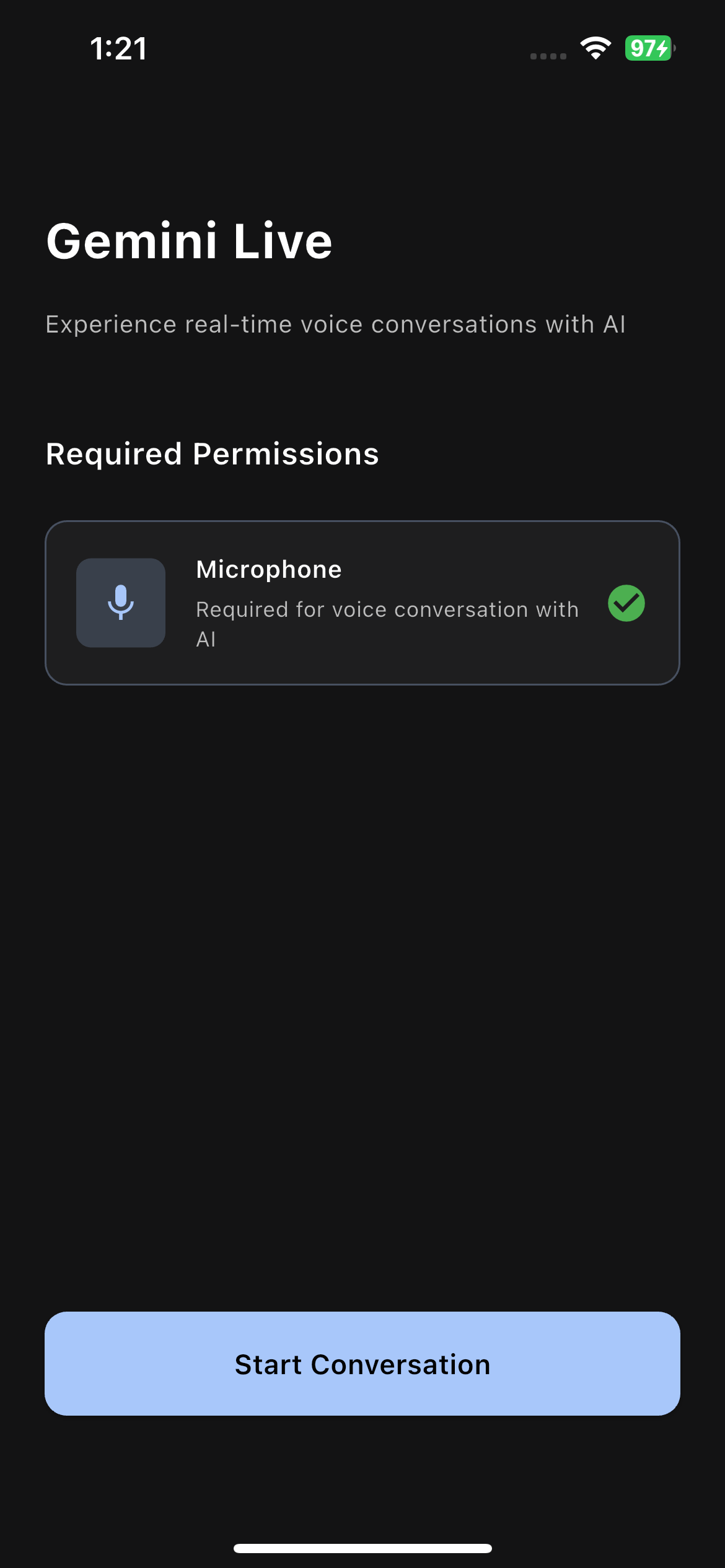
Home Screen: Landing screen of app, where the next page is disabled until the right permissions is provided.
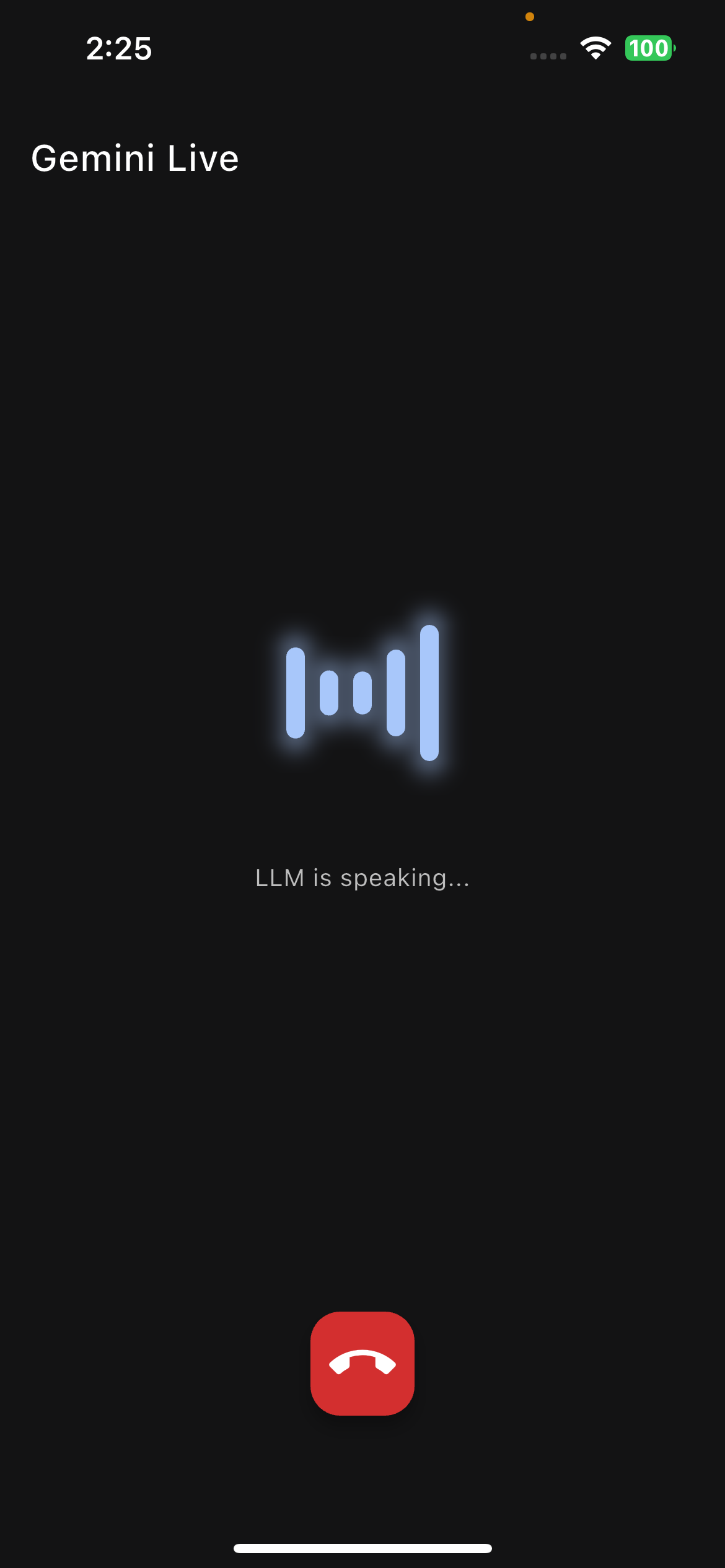
Live Screen: The AI conversational screen.
## How Things Are Laid Out (Project Structure)
Inspired from a .NET ecosystem, the folder structure is little unconventional to a flutter dev. But I think clarity will be established once you understand the contents - Trust me it takes little to no time to get used to it.
```
lib/
├── application/ # Contains the screens of the app
├── infrastructure/ # Implementations that screen depend on - these are absolute implementations that application depends on.
├── services/ # The blueprint for our services - application uses as proxy, so that infrastructure can be swapped out anytime.
└── widgets/ # Handy-dandy reusable UI bits
```
## Chatting with the AI & Its Personality (System Instructions)
As the goal of the app is definitely the lively chats that you can have with the AI, we setup the character and scenario in "system_prompt" under assets folder. This contains the details about scenario and persona of LLM to respond with.
Right now, this system prompt lives in a local text file: `assets/hostage_system_instruction.txt`. In this example, it makes the AI play along with a serious hostage negotiation scenario. There are couple of other examples as well, some that work really well, others which I don't want to talk about.
Fortunately after spending 2 weeks of RDR 2 in-game hours in real life, found the documentation of the gemini live API that google wants us to use. Most of the other documents which I tried guiding through had either not worked or marked as deprecated or will be deprecated soon enough: [Live API Documentation](https://firebase.google.com/docs/ai-logic/live-api?api=dev)
## Tested Platforms
The application has been tested on the following platforms:
| Platform | Status |
|----------|------------|
| Android | ❌ Untested |
| iOS | ✅ Tested |
| Windows | ❌ Untested |
| Web | ❌ Untested |
## What's Next?
This project is still a work in progress and a playground for new ideas! Here's a sneak peek at what I might be taking it from here:
- **Fix Conversation Gaps**: Address the awkward pauses and timing issues that occur between user speech and LLM responses to create a more natural conversational flow.
- **Smart Context Management**: Implement playback cancellation so the LLM can catch up to the current context by interrupting older audio responses when new input arrives.
- **Thinking State Indicator**: Add visual feedback in the UI to show when the user has finished speaking and the app is waiting for the LLM to process and respond.
- **More Voices!**: Try more voice options (once the API lets me to) and provide them as presentable UI in home screen.
- **Language Adventures**: Current jarring system_instruction is 'rajini', which I hope would sound good someday, as I work on the app in languages other than en-US